
The Status Durations report helps you analyse how long cases take to move through selected parts of the case management process.
You can define the statuses you want to measure between and then break down the results by Priority, Category, Unit, Channel, or Procedure. This helps you compare processing times across different types of cases and identify where delays or unusually long durations may occur.
Where to find the Status Durations report
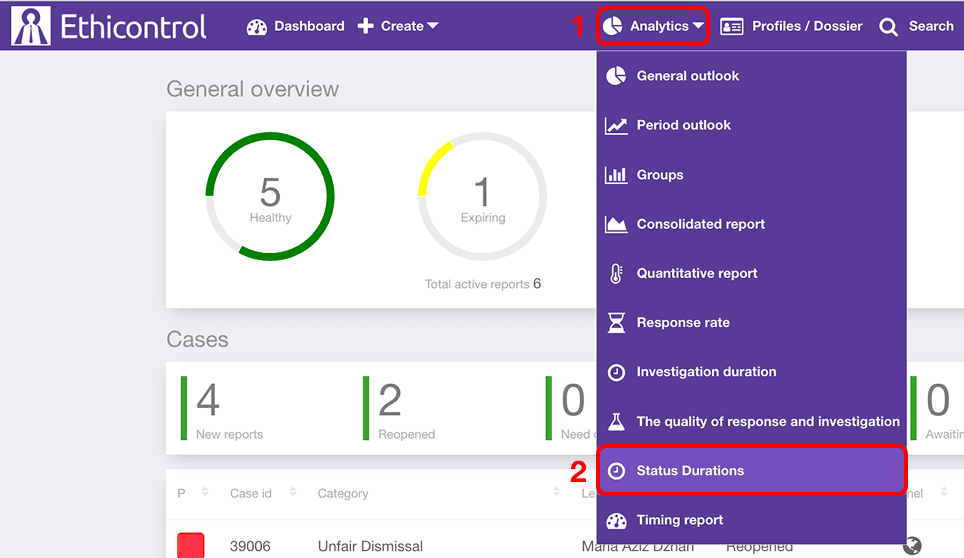
2. Select Status Durations.
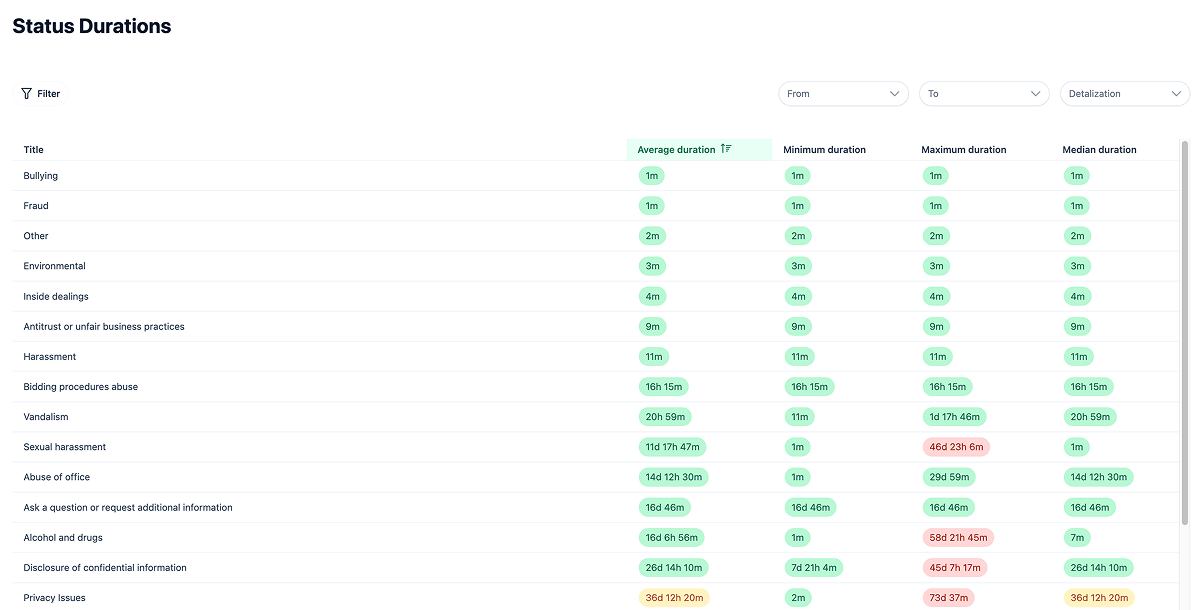 The report contains:
- From and To status selectors;
- a Detailization selector;
- duration metrics;
- filters and filter templates.
Select the part of the workflow to analyse
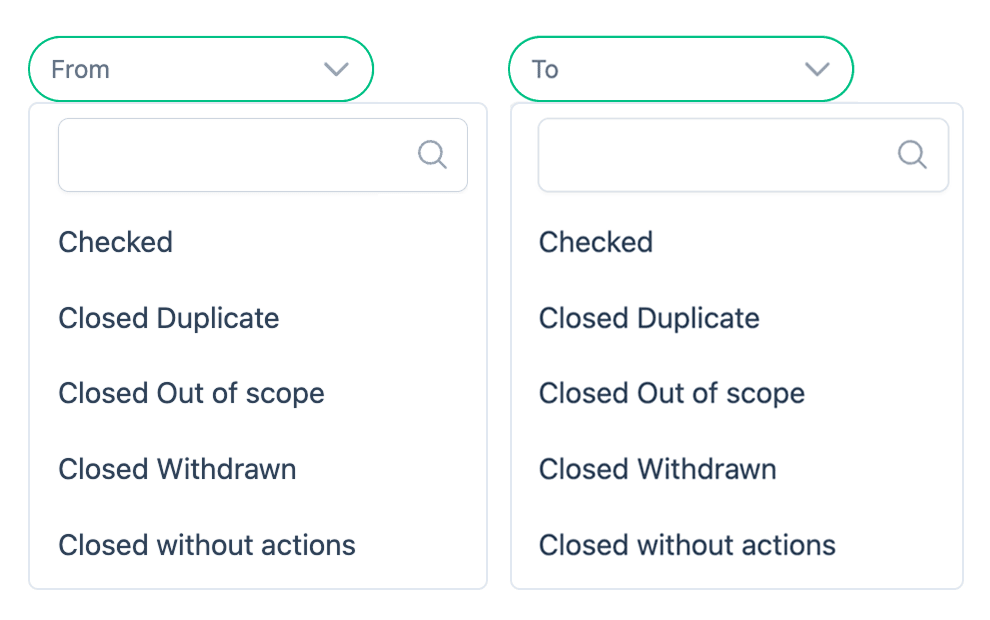 Use From and To to define the part of the case workflow you want to measure.
- From — select the starting status.
- To — select the ending status.
The report uses these statuses to analyse how long cases take to move through the selected part of the workflow.
The available statuses depend on your organisation's case management configuration.
Choose how to break down the results
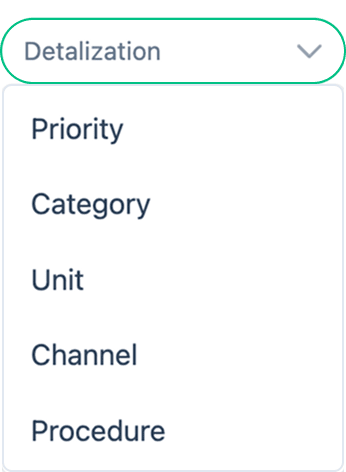
Use Detailization to determine how the results are grouped in the table.
Available options include:
- Priority
- Category
- Unit
- Channel
- Procedure
Changing this option changes what appears in the Title column.
For example:
select Channel to compare durations for Webform, Phone, Email, Incident memo, and other intake channels;
select Unit to compare case-processing durations across organisational units;
select Procedure to compare different case procedures;
select Category to compare different case categories;
select Priority to compare cases by priority level.
This allows you to analyse the same part of the workflow from different perspectives.
Understand the duration metrics
For each group, the report displays several duration metrics.
| Metric | What it shows |
|---|---|
| Average duration | The average duration across the cases included in the group. |
| Minimum duration | The shortest recorded duration. |
| Maximum duration | The longest recorded duration. |
| Median duration | The middle duration when all recorded durations are arranged from shortest to longest. |
Looking at these metrics together can help you understand whether a long processing time is typical for a group or caused by individual cases.
For example, a high Maximum duration combined with a much lower Median duration may indicate that a small number of cases took considerably longer than most others.
Filter the cases included in the report
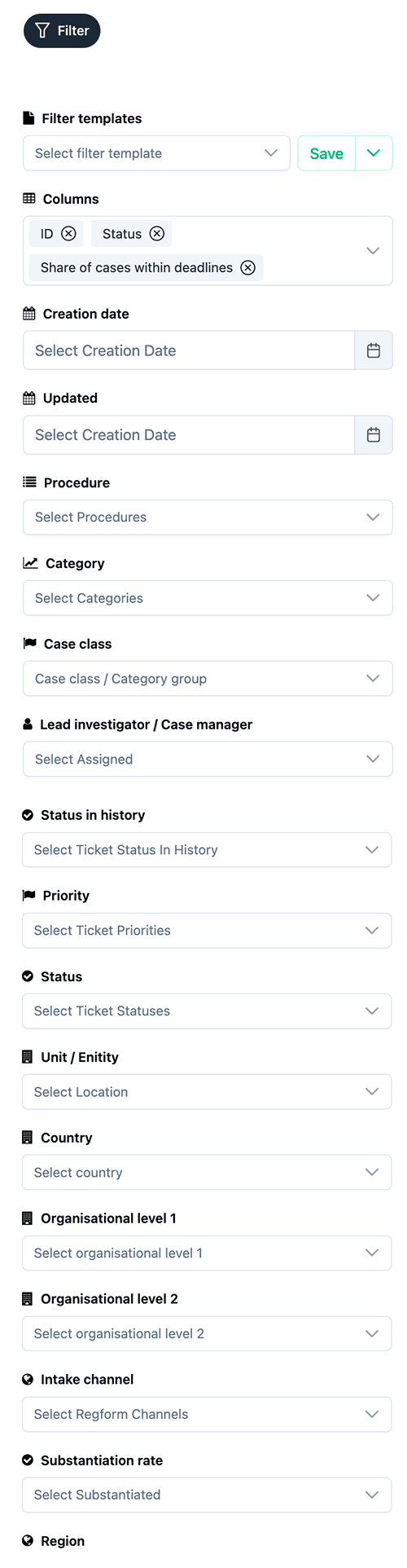 Select Filter to narrow the dataset used for the analysis.
Available filters may include:
- Creation date;
- Updated date;
- Procedure;
- Category;
- Case class;
- Lead investigator / Case manager;
- Status in history;
- Priority;
- Intake channel;
- Region;
- other organisation-specific case attributes.
You can combine several filters before applying them.
For example, you can analyse durations only for high-priority cases created during a selected period and assigned to a particular Case Manager.
Filters and Detailization work differently
Filters determine which cases are included in the report.
Detailization determines how those cases are grouped in the results.
For example, you could filter the report to include only cases from one procedure and then select Channel as the detailization. The table would then compare duration metrics between the reporting channels used for those cases.
This makes it possible to move from a broad overview to a more specific analysis without changing the report itself.
Use filter templates
If you regularly use the same set of filters, you can select an existing Filter template.
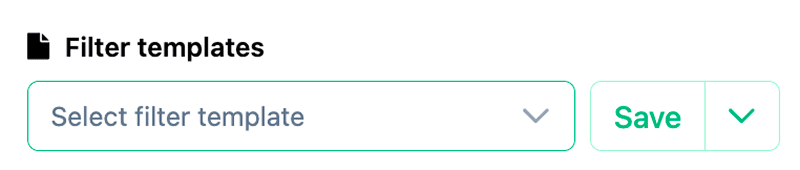
Depending on your permissions, you may also be able to save the current filter configuration as a template for future use.
How to use the report
The Status Durations report can help you compare processing times across different parts of the organisation and different types of cases.
For example, you can:
compare whether cases received by Phone take longer than cases received through the Webform;
compare processing times across organisational Units;
identify case Categories with unusually high median durations;
compare different Procedures;
review whether high-priority cases move through the selected workflow stages faster than lower-priority cases.
If one group consistently shows longer durations, use the relevant case records to investigate the reason behind the difference.
The report identifies timing patterns but does not by itself explain why a particular case took longer.
Notes
From and To define the workflow statuses used for the duration analysis.
Detailization determines how the results are grouped.
Available statuses, categories, units, procedures, and other values depend on your organisation's configuration.
Average and median durations can differ significantly when individual cases have unusually long or short processing times.
Access to the Status Durations report depends on your user permissions.