
The Timing Report helps you monitor whether cases are being handled within the timeframes defined by your organisation.
It shows the share of cases that remain within the applicable deadlines and helps compliance and investigation teams identify stages of the case process where additional attention may be needed.
Where to find the Timing Report
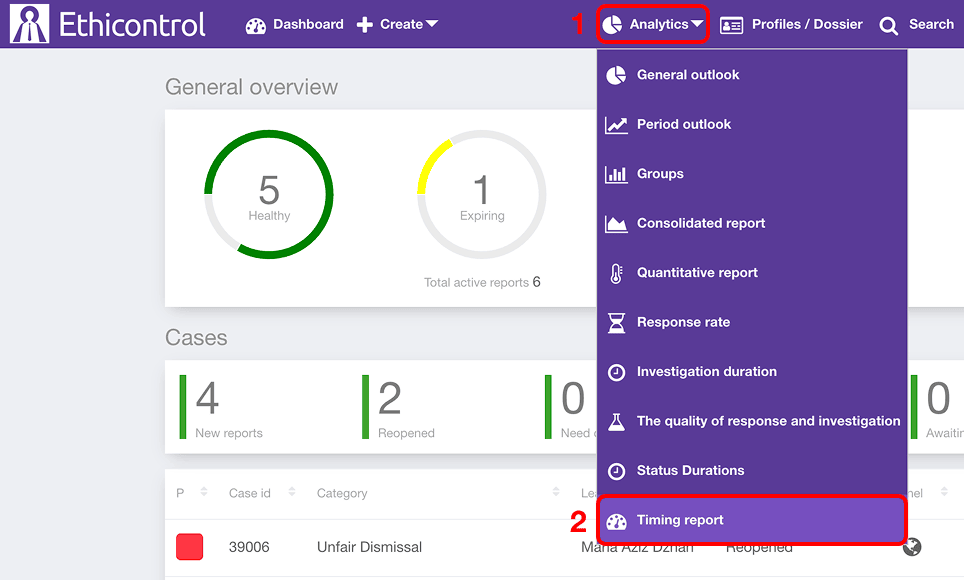 1. Open Analytics from the main navigation.
2. Select Timing report.
The report opens with a chart, a detailed table, and filtering options.
What the Timing Report shows
The report groups cases by status and shows the Share of cases within deadlines for each status.
For example, you can compare how many cases remain within the expected timeframe while they are:
New / Unreviewed;
Open / Under review;
Waiting for information;
On remediation;
Reopened;
Waiting for closing;
Closed.
The exact statuses available depend on your organisation's configuration.
The report presents the same information in two formats:
Chart
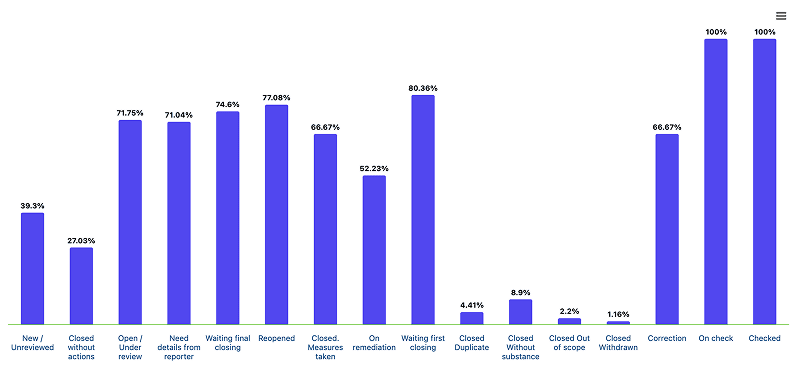 The bar chart provides a visual comparison of the percentage of cases within deadlines for each status.
This makes it easier to identify statuses where cases are more frequently approaching or exceeding the expected processing timeframe.
You can export charts in PNG, SVG, or JPEG format.
Table
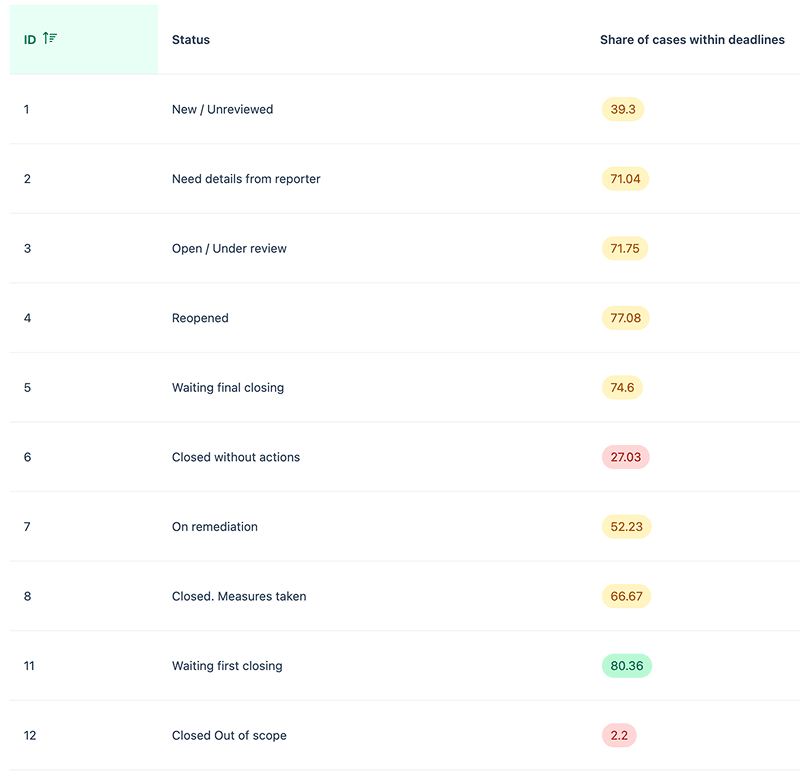 The table below the chart provides the underlying values for each status.
It includes:
- ID of the status;
- Status;
- Share of cases within deadlines.
Use the table when you need to review the exact percentage for a particular status.
You can export table data in CSV or XLS format.
How to filter the report
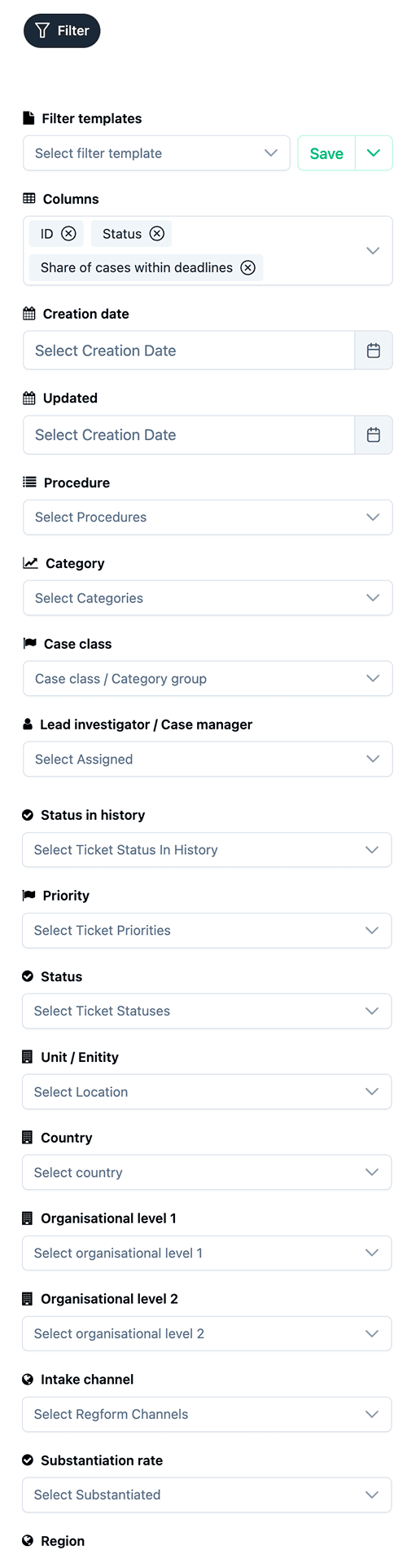
Select Filter to narrow the report to the cases you want to analyse.
Available filters may include:
- Creation date;
- Updated date;
- Procedure;
- Category;
- Case class;
- Lead investigator / Case manager;
- Status in history;
- Priority;
- Status;
- Unit / Entity;
- Country;
- Organisational level 1;
- Organisational level 2;
- Intake channel;
- Region.
The filters available in your environment may depend on your organisation's configuration.
You can combine several filters to analyse a specific part of the case-management process.
For example, you can review the share of cases within deadlines for:
- a particular organisational unit;
- a selected case category;
- one Case Manager;
- cases created during a specific period;
- cases received through a particular reporting channel.
How to use the report
The Timing Report is useful for identifying where case processing may require attention.
For example, if the percentage of cases within deadlines is consistently lower for one status, you can investigate whether cases tend to remain at that stage longer than expected.
You can also use filters to determine whether the pattern is associated with a particular team, case category, investigator, unit, or reporting channel.
The report provides an overview of timing performance. Review the relevant cases and their individual circumstances before deciding whether follow-up or process changes are required.
Filter templates
If you regularly analyse the same group of cases, you can use Filter templates to reuse a predefined set of filters.
Select an available template from the Filter templates field before reviewing the report.
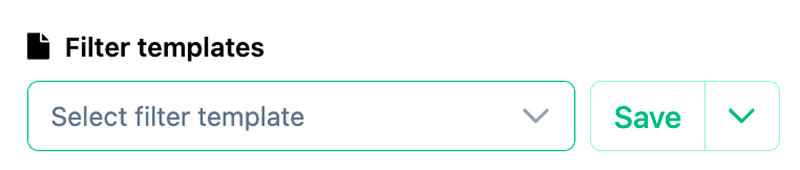
Depending on your permissions and configuration, you may also be able to save a selected filter configuration for future use.
Notes
The Timing Report reflects the deadlines configured for your organisation.
The exact statuses, procedures, organisational levels, and other filter values depend on your organisation's setup.
A lower percentage does not by itself explain why cases are outside the expected timeframe. Use the report to identify areas that require further review.
Access to Analytics and individual reports depends on your user permissions.