
Two-factor authentication adds an extra verification step when you sign in to your account.
You can generate verification codes using a standard TOTP authenticator app, such as Google Authenticator or Authy.
This method can be offered alongside other authentication options configured by your organisation.
Before you begin
You need:
access to your Ethicontrol account;
a compatible authenticator app installed on your phone or another device;
permission to enable two-factor authentication for your account.
Your organisation must also have authenticator app verification enabled as an available authentication method.
Supported authenticator apps
You can use a standard app that supports time-based one-time passwords, or TOTP.
Examples include:
another compatible TOTP application.
The exact app you use does not need to be connected to your phone number or SMS provider.
How to enable two-factor authentication
1. Sign in to Ethicontrol.
2. Open the user menu in the top navigation bar.
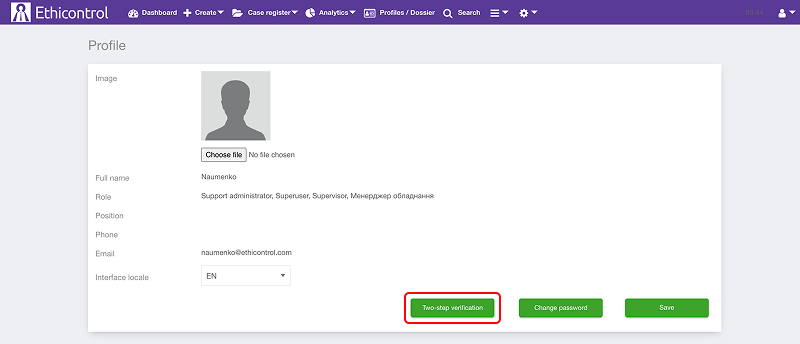
3. Select Profile.

4. Click on the Two-step verification button.
5. Open the authenticator app on your device.
6. Add a new account in the app.
7. Scan the QR code displayed in Ethicontrol.
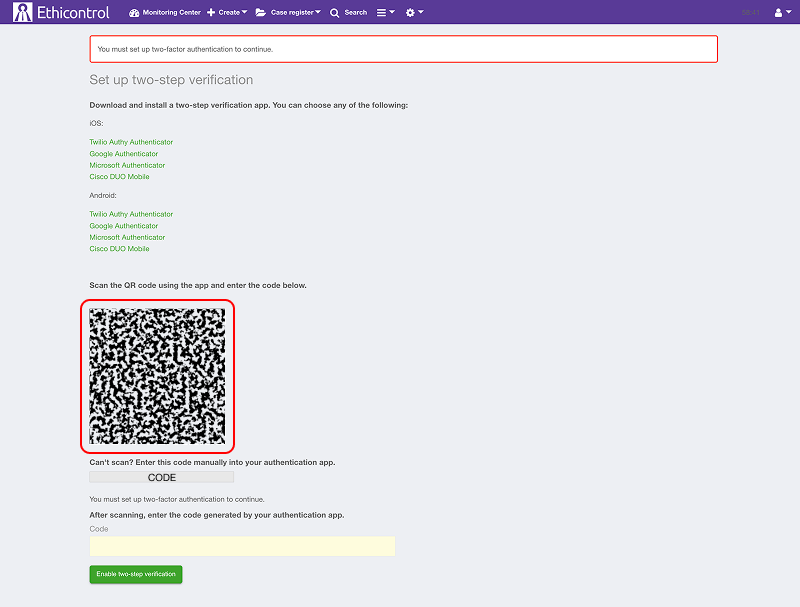
8. The authenticator app will generate a temporary verification code.
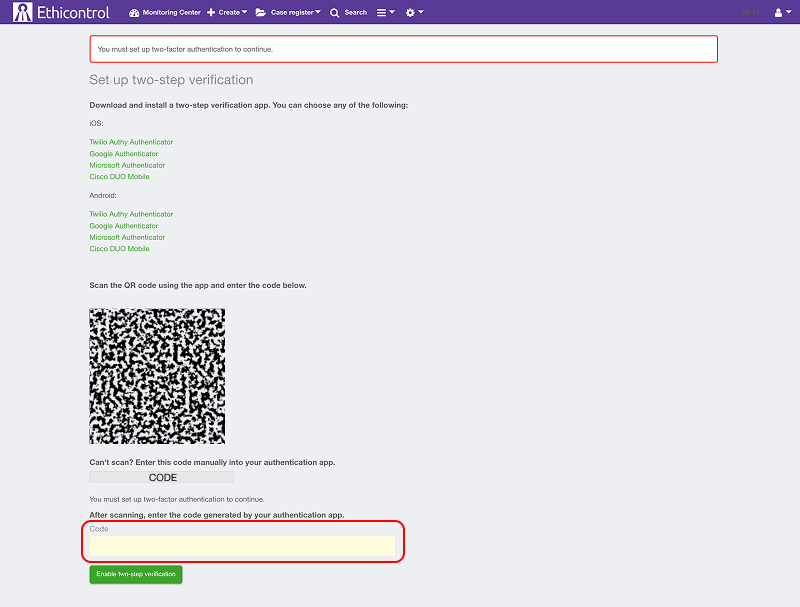
9. Enter this code in the Code field in Ethicontrol.
10. Confirm the setup.
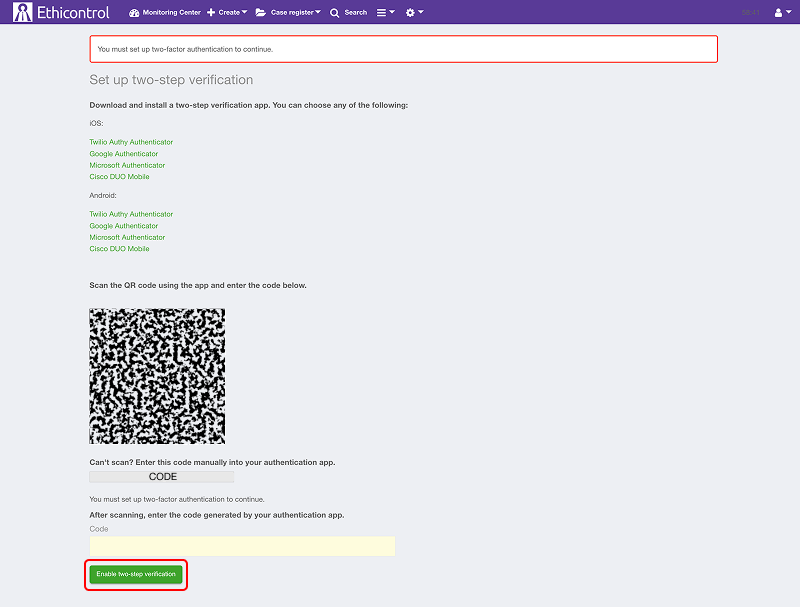
After successful confirmation, two-factor authentication is enabled for your account.
Setting up the app without scanning the QR code
Depending on the available interface, Ethicontrol may also display a setup key together with the QR code.
You can use this key when:
the device cannot scan the QR code;
you are configuring the authenticator manually;
the authenticator app is installed on the same device on which you opened Ethicontrol.
To add the account manually:
1. Copy the setup key displayed in Ethicontrol.
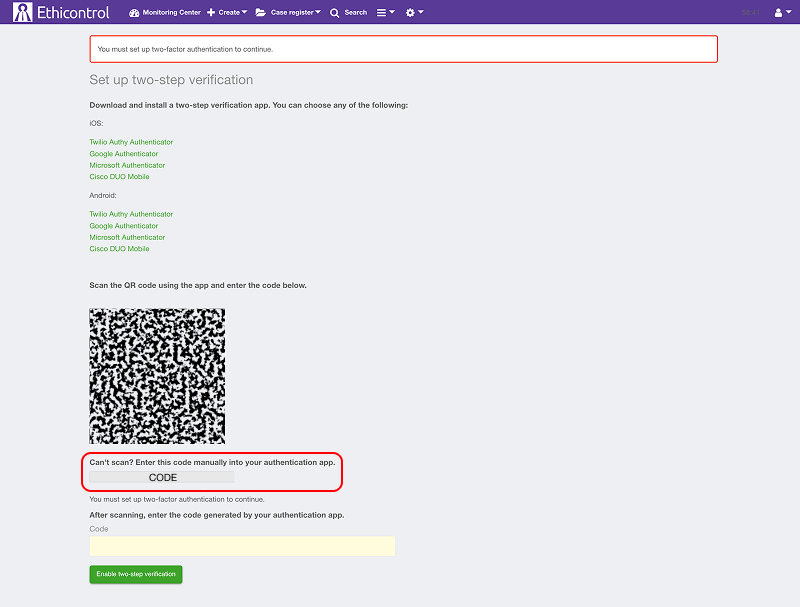
2. In your authenticator app, select the option to enter a setup key manually.
3. Enter the account name and setup key.
4. Select Time-based as the code type if the app asks you to choose.
5. Save the account.
6. Enter the generated code in Ethicontrol to complete the setup.
Do not share the QR code or setup key with other people. Anyone who has access to them may be able to generate verification codes for your account.
How to sign in after enabling 2FA
After entering your username and password:
1. Open your authenticator app.
2. Find the account connected to Ethicontrol.
3. Enter the current verification code displayed in the app.
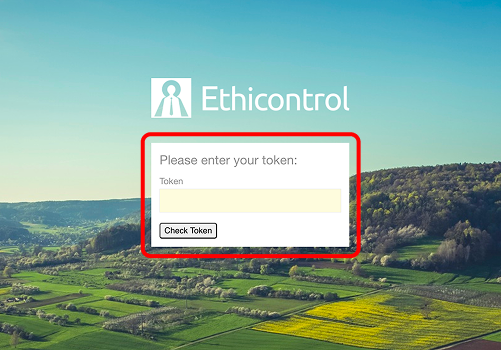
4. Complete the sign-in process.
The code changes automatically after a short period. If the displayed code is about to expire, wait for the next one before entering it.
Authenticator codes are generated on the device and do not depend on SMS delivery.
What happens after setup
After two-factor authentication is enabled:
your account requires an authenticator code during sign-in;
the app generates new time-based codes automatically;
SMS delivery is not required for this authentication method;
the status of two-factor authentication is shown in your profile settings.
Your organisation may continue to offer SMS or other authentication methods alongside the authenticator app option.
Troubleshooting
The verification code is not accepted
Check that:
you entered the code for the correct Ethicontrol account;
the code has not expired;
the date and time on your device are set automatically;
you did not enter additional spaces;
the authenticator app supports TOTP codes.
Wait for a new code and try again if the current code is close to expiring.
The QR code cannot be scanned
Try the following:
increase the screen brightness;
make sure the entire QR code is visible;
clean the camera lens;
move the device slightly farther from the screen;
use the manual setup key if it is available.
The Two-step verification option is not available
The authenticator app method may not be enabled for your organisation or your account.
Contact your administrator or Ethicontrol support to confirm the available authentication methods.
I lost access to my authenticator device
Contact your organisation’s administrator or Ethicontrol support.
For security reasons, users may not be able to restore or reset the second authentication factor without administrator assistance. The previous Helpdesk article also notes that self-restoration may be restricted by the organisation’s information security policy.
Notes
Authenticator apps use time-based one-time passwords, also known as TOTP.
The codes can be generated without mobile reception or SMS delivery.
Do not share your QR code, setup key, or current verification codes.
The available authentication methods depend on your organisation’s configuration.
Losing access to the authenticator device may require an administrator to reset your 2FA settings.