
The Category dictionary supports a three-level structure:
- Category
- Subgroup
- Sub-category
The available categories, subgroups and sub-categories must first be configured in the corresponding catalogues.
The options displayed in a case depend on the mappings configured by your organisation.
Category structure
The Category dictionary now supports three classification levels:
Category — the main type of violation;
Subgroup — a more specific group within the category;
Sub-category — the most detailed classification level.
For example:
Environmental protection, health and safety
→ Product safety
→ Employee touches unpackaged product without nitrile gloves
The exact structure depends on your organisation’s Category dictionary.
How to select a sub-category in a case
1. Open the required case.
2. Select the main violation Category.
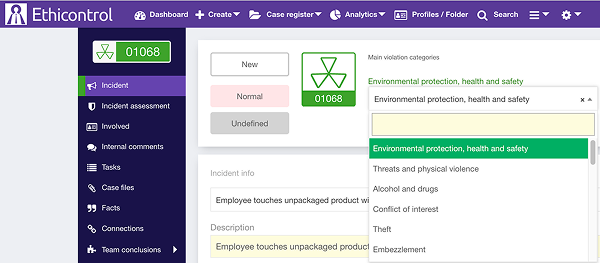
3. Select a Sub-category from the available options.
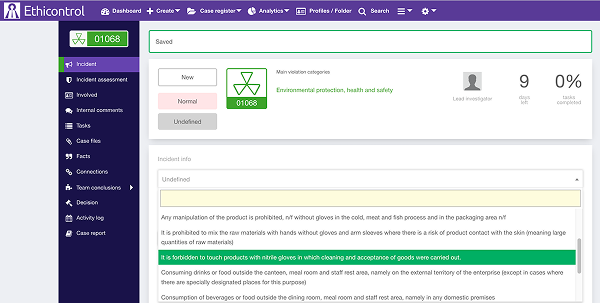
The system filters each level based on the previous selection. This means that only subgroups and sub-categories connected to the selected category are displayed.
How the sub-category affects a Short plot
When you create a Short plot, the system automatically adds the selected case sub-category to the Description field.
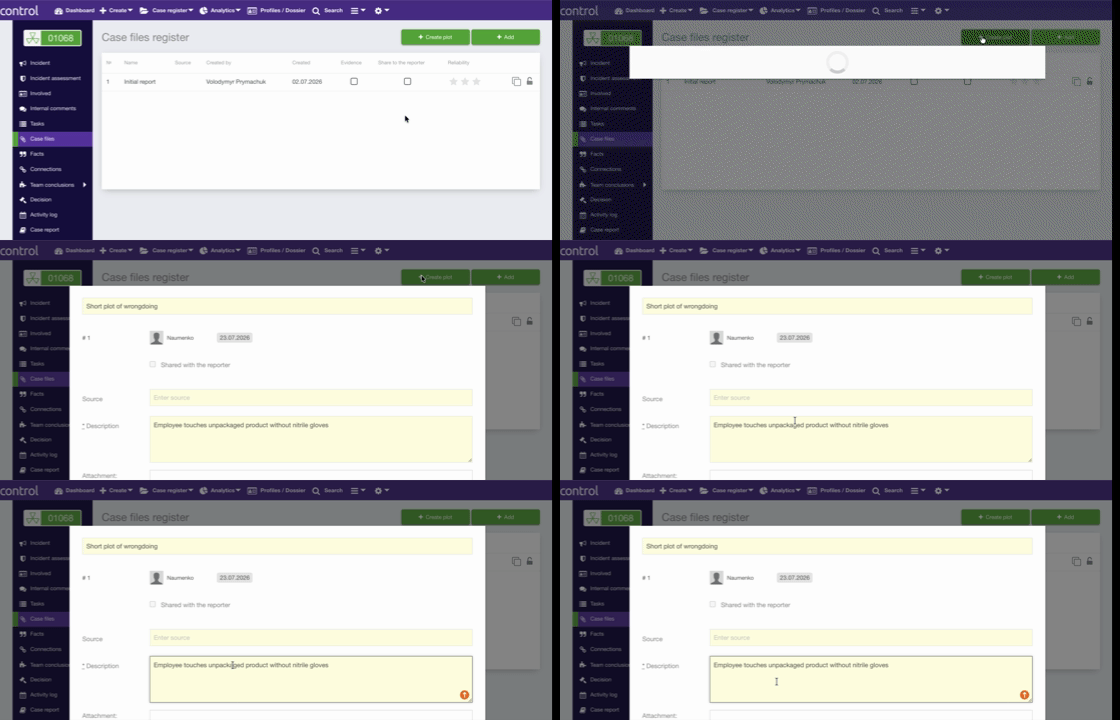
If you change the sub-category before creating a new Short plot, the description will use the newly selected value.
Review the automatically added text and complete the description with any additional details relevant to the incident.
Catalogue and mapping requirements
For the filtering to work correctly:
sub-categories must be connected to the appropriate category;
Incident subject options must be mapped to the relevant violation categories;
Short plots must be added to the Short plot/Sub-category catalogue;
Short plots must be mapped to the relevant category structure.
If an expected option does not appear, the most likely reason is that it has not been mapped to the selected category or subgroup.
Troubleshooting
A sub-category does not appear
Check that:
the correct category is selected;
the sub-category is active in the Category dictionary;
the sub-category is mapped to the selected category.
A Short plot does not appear
Check that:
the Short plot exists in the Short plot/Sub-category catalogue;
it is mapped to the selected category or subgroup;
the case classification has been saved;
the Short plot is active and available for use.
Notes
The available options depend on your organisation’s catalogue configuration.
Changing a category may change the options available in dependent fields.
The three-level structure improves classification but does not automatically create new catalogue entries or mappings.