
The Incident Impact attribute allows authorised users to indicate the potential severity or consequences of an incident.
It can be used to support case prioritisation, risk assessment, reporting, and incident-related workflows.
What Incident Impact is
Incident Impact is a configurable value assigned to a case.
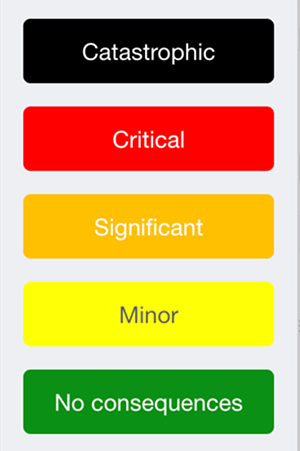
Depending on your organisation’s settings, available values may include options such as:
0. Undefined
1. No consequences
2. Minor
3. Significant
4. Critical
5. Catastrophic
The exact names and number of values depend on the organisation’s configured Incident Impact dictionary.
Before you begin
To view or update Incident Impact:
- the Incident Impact dictionary must be configured for your organisation;
- you must have permission to access the relevant case;
- you must have permission to update the impact value.
Users without update permission may be able to view the current impact but cannot change it.
How to set Incident Impact
1. Open the required case.
2. Find the Incident Impact selector in the case view.
3. Open the dropdown.
4. Select the value that best reflects the potential or confirmed consequences of the incident.
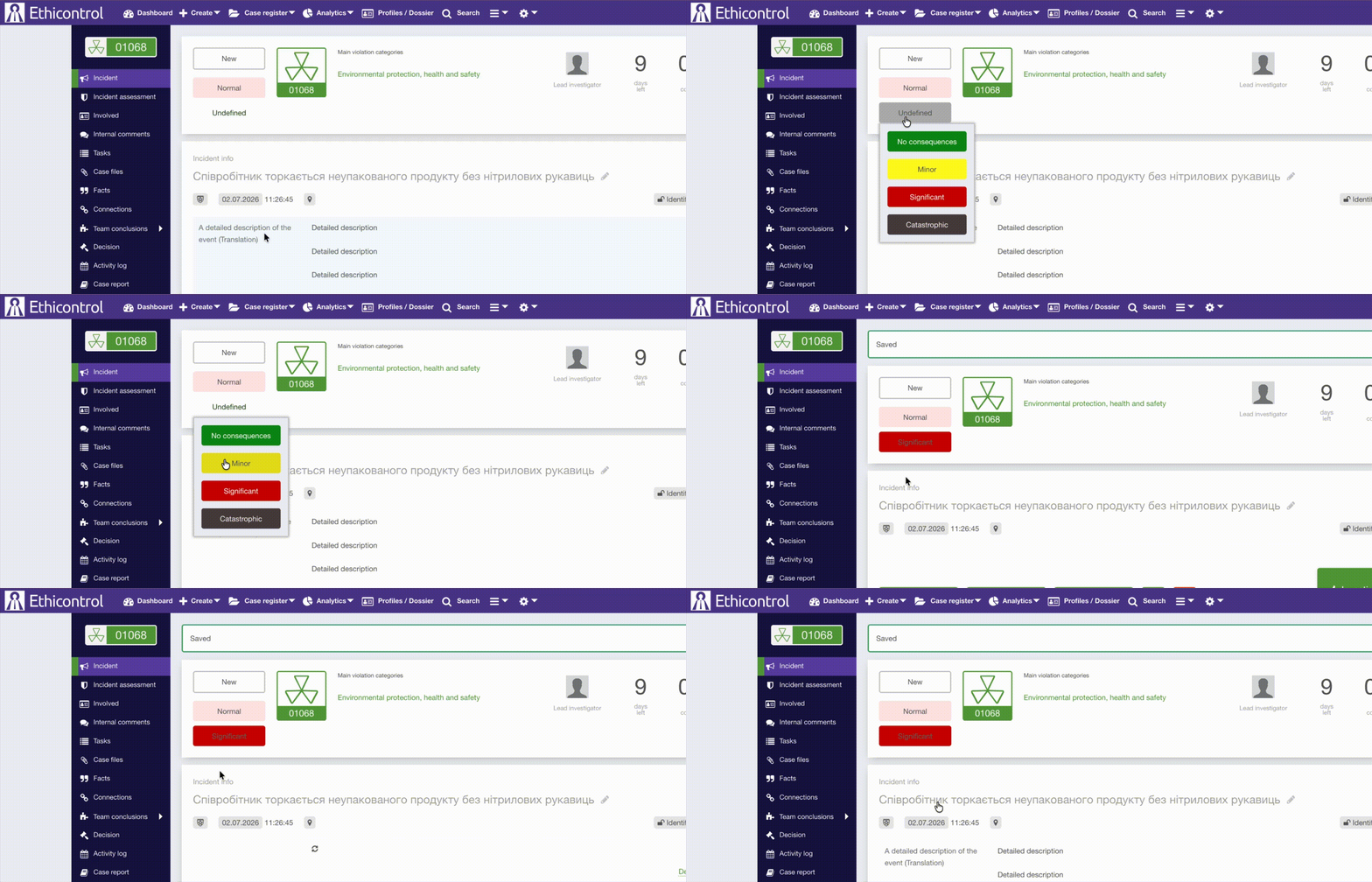
The selected impact is displayed in the case view.
How to update Incident Impact
The impact value can be changed when new information becomes available during the investigation.
To update it:
- Open the case.
- Click the current Incident Impact value.
- Select a new value.
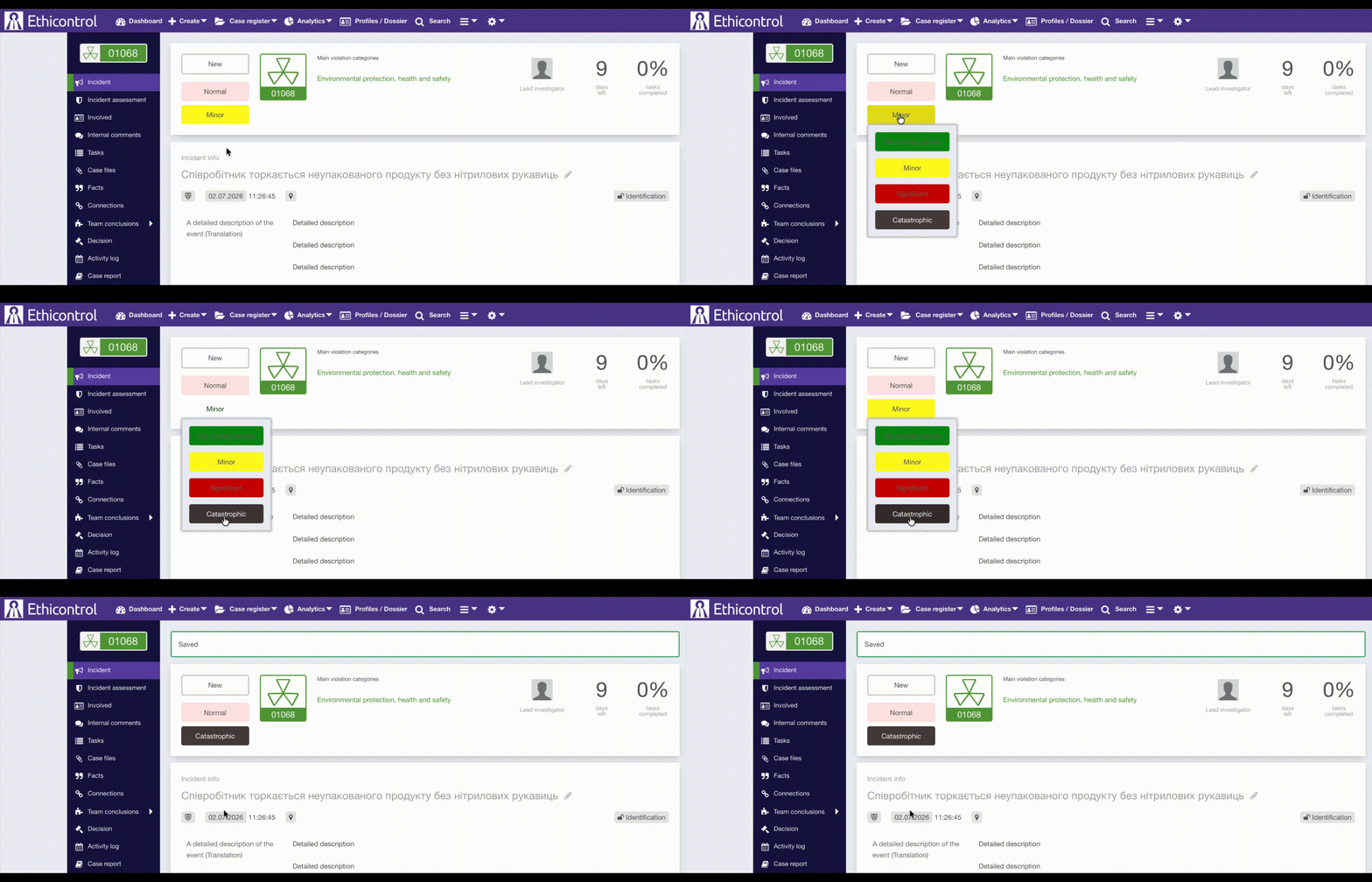
For example, an incident initially classified as Minor may later be updated to Catastrophic after the investigation confirms a serious impact.
Incident Impact dictionary
Incident Impact values are managed through the organisation’s configuration and Sync Data settings.
The dictionary allows the organisation to standardise the impact levels used across cases.
Only values available in the configured dictionary can be selected in the case interface.
Using Incident Impact in automations
Incident Impact can be updated automatically based on the case category or sub-category.
When a user selects or changes the category or sub-category, the system can apply a custom rules matrix and assign the corresponding Impact value to the case. For example, selecting a case priority High may automatically change the impact to Critical.
The same setup can also trigger an email notification to selected roles, such as the Case Manager, when the incident reaches a specified impact level.
These automations are not configured directly by users in the platform. They are set up by the Ethicontrol team according to your organisation’s requirements.
What happens when the impact is updated
After the Incident Impact value is changed:
- the new value is displayed in the case;
- authorised users can see the updated severity;
- configured automations may be triggered;
- the change is recorded in the case activity log.

Updating the impact does not change the case category, status, or investigation outcome unless a separate automation is configured to do so.
Troubleshooting
The Incident Impact selector is not visible
Check that:
- the feature is enabled for your organisation;
- the Incident Impact dictionary has been configured;
- your role has permission to view the field;
- you are viewing a supported case type.
I can see the impact but cannot change it
Your role may not have permission to update Incident Impact.
Contact an administrator to review your case permissions.
Notes
- Incident Impact values are configured separately for each organisation.
- Only authorised users can update the impact.
- The impact can be revised as the investigation progresses.
- Incident Impact describes the severity or consequences of the incident; it is separate from the case status and case emergency.
- Automation behaviour depends on the rules configured by the organisation.