
The Assets feature allows your organisation to maintain a central inventory of equipment, devices, property, and other assets.
Assets can be linked to users or personages and added to tasks and case materials. Linked assets are also displayed in the relevant Profiles and Dossiers.
What information an asset can contain

Each asset record can include the following information:
Unique ID — the unique identifier of the asset record;
Asset number — the inventory or ERP number;
Name — the asset name;
Description — additional information about the asset;
Unit — the organisational unit associated with the asset;
Responsible — the person or organisation responsible for the asset;
Asset value — the recorded value of the asset;
Multiple users or personages can be linked to the same asset.
Before you begin
To manage assets, you need access to the Asset resource in the permissions matrix.
Users assigned the internal asset_manager role can be granted permissions to manage the Assets directory.
The exact actions available to you depend on your organisation’s role and permission settings.
How to import assets
Assets can be imported in bulk through the Sync Data settings.
Before importing, prepare the asset data using the supported fields:
| Field | Description |
|---|---|
unique_id | Unique asset identifier |
asset_number | ERP or inventory number |
asset_name | Asset name |
asset_description | Asset description |
unit | Related organisational unit |
asset_responsible | Asset owner |
asset_value | Asset value |
To import assets:
1. Create a Google Sheet with the following columns:
| unique_id | asset_number | asset_name | asset_description | unit | asset_responsibles | asset_value |
2. Add all assets you want to import to the table. Use one row for each asset.
3. Send the completed Google Sheet to the Ethicontrol project manager supporting your organisation.
4. The project manager will upload the data through Sync Data.
After the import, the assets become available in the fields that support asset selection.
Linking people to an asset
An asset can be associated with one or several users or personages.
This can be used, for example, to identify:
the person responsible for the asset;
employees who use the asset;
people connected to the asset during an incident;
several responsible users for shared equipment.
The links are stored in the asset record and can also be displayed in the corresponding Profiles / Dossiers.
Adding an asset to a case material
Case file and case material cards include an Asset field.
To link an asset to a material:
1. Open the required case.
2. Go to the Case files section.
3. Create a new material or open an existing one.
4. Find the Asset field.
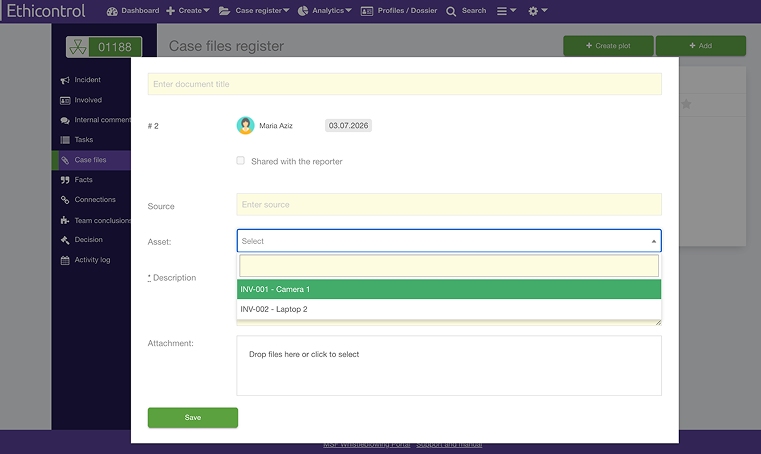
5. Select the relevant asset.
6. Add the remaining information or attachment.
7. Save the Case file.
The file is now linked to the selected asset.
This makes it possible to identify which item, device, vehicle, document, or other asset is connected to the evidence or case information.
Adding an asset to a task
Task cards include both Profile and Asset fields.
To link an asset to a task:
1. Open the required case.
2. Go to the Case files section.
3. Create a new material or open an existing one.
4. Find the Asset field.
5. Select the relevant asset.
6. Click "Create a task for related asset managers".
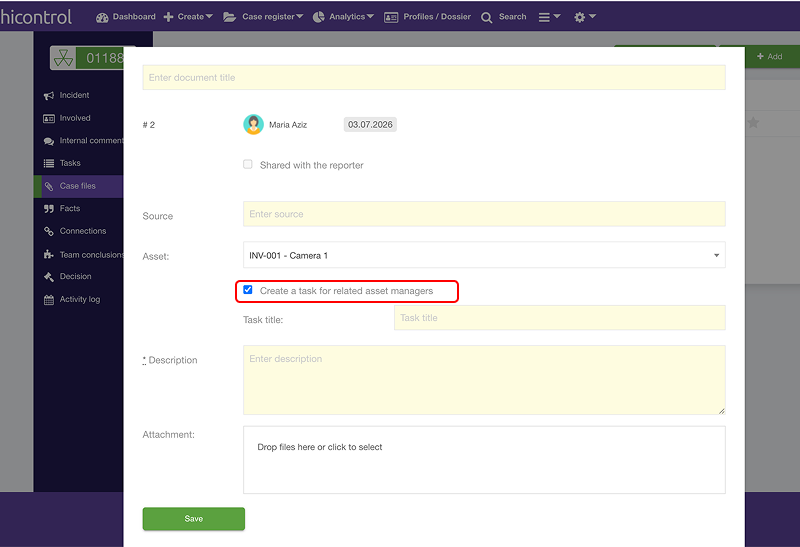
7. Add the remaining information for the task.
8. Save the Case file.
The selected asset is then displayed on the task card and provides additional context for the assigned users.
Viewing assets in Profiles / Dossiers
Profiles / Dossiers display assets linked to the relevant person.
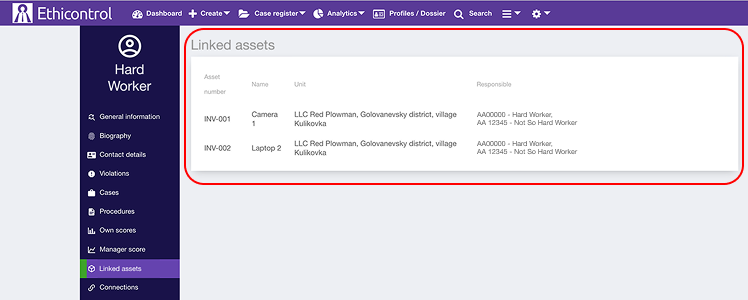
This allows authorised users to review which assets are associated with a user or personage without searching the entire Assets directory.
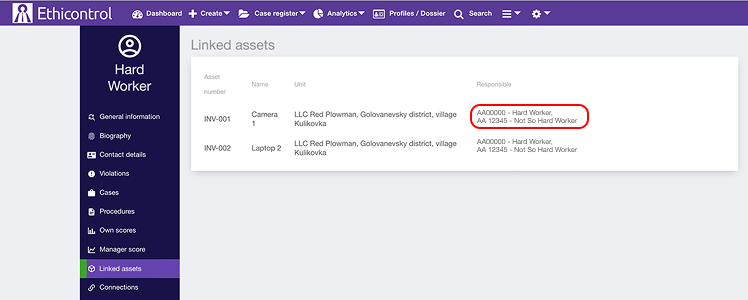
A person may have several linked assets, and one asset may be linked to several people.
Permissions
The Assets feature introduces:
the internal asset_manager role;
the Asset resource in the permissions matrix.
Permissions can be configured to control who can:
view assets;
create asset records;
edit asset information;
import assets;
link assets to people, tasks, or case materials;
access asset information through Profiles / Dossiers.
Users only see the actions allowed by their assigned role.
What happens when an asset is linked
After an asset is linked:
it appears on the relevant task or case material card;
users can identify the exact inventory item involved;
linked users or personages can be viewed in the asset context;
the asset may appear in the related Profiles / Dossiers;
supported workflows can use the asset in notifications, comments, completion tracking, and personage tagging.
Linking an asset does not change or delete the original asset record.
Troubleshooting
An asset does not appear in the selection list
Check that:
the asset was imported or created successfully;
the asset has a valid unique ID;
your role has permission to view the Asset resource;
the asset is active and available to your organisational unit;
the import completed without errors.
Assets are not visible in a Profile or Dossier
Check that:
the asset is linked to the correct user or personage;
your role has access to both the profile and the asset;
the link was saved successfully.
Notes
One asset can be linked to multiple users or personages.
Asset access is controlled through the permissions matrix.
The available fields and actions may depend on your organisation’s configuration.