
Pseudonymization allows you to hide the identity of a case author from case members who should not have access to this information.
The author’s record remains available in the case, but their identity is only visible to users with the required permissions.
Before you begin
To pseudonymize or reveal a case author, you must have permission to manage the confidentiality of reporters and case originators.
Users with special permissions, such as supervisors, may continue to see the author’s identity after pseudonymization.
How to pseudonymize a case author
1. Open the required case.
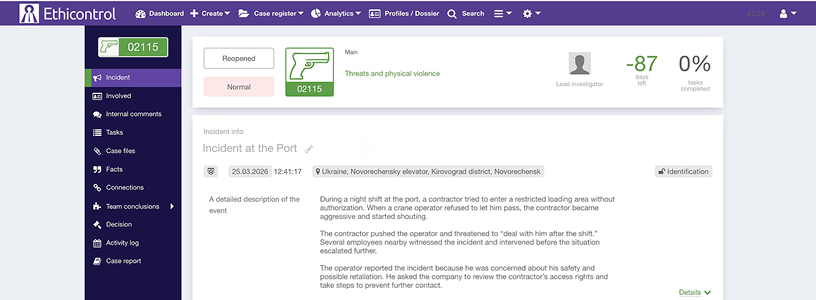
2. Go to the Involved section.
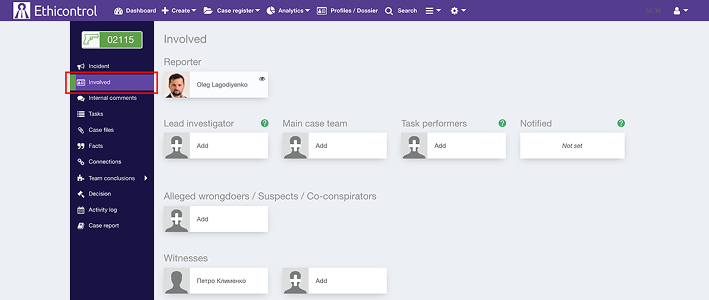
3. Find the author in the Reporter section.
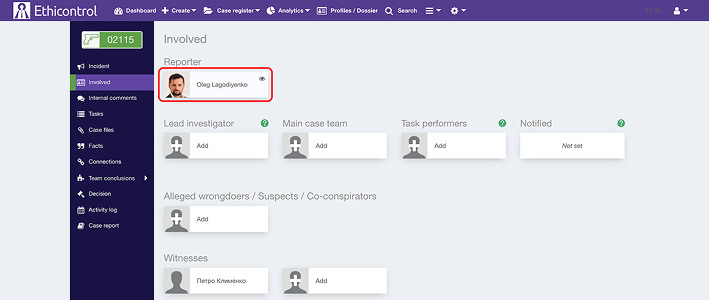
4. Click the eye icon next to the author’s name.
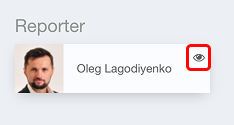
After the action is completed, the crossed-out eye icon appears next to the author’s record.
The author’s identity is now hidden from case members who do not have permission to view confidential reporter information.
What happens after pseudonymization
After the author is pseudonymized:
the author’s name and personal information are hidden from users without the required permission;
users with special confidentiality permissions can still view the author’s identity;
the author’s record remains connected to the case;
authorized users can still access the author through the Dossier;
the action is recorded in the case activity history.
Pseudonymization does not delete the author’s user account, personage record, or connection to the case.
How to reveal a case author
You can restore the author’s visibility at any time if you have the required permission.
1. Open the case.
2. Go to the Involved section.
3. Find the author in the Reporter section.
4. Click the crossed-out eye icon next to the author’s record.
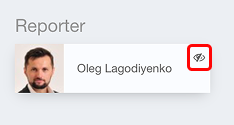
The regular eye icon appears again, and the author’s identity becomes visible according to the access permissions assigned to case members.
Checking visibility changes in the activity log
Every time an author is hidden or revealed, the action is recorded in the case log.
To review these changes:
1. Open the required case.
2. Go to Activity log.
3. Find the relevant hide or unhide action.
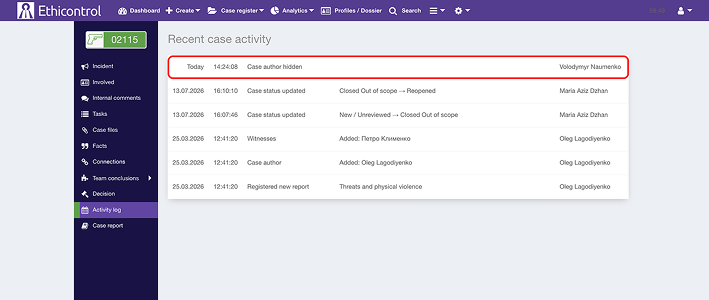
The log allows authorized users to check:
who changed the author’s visibility;
when the change was made;
whether the author was hidden or revealed.
Notes
Pseudonymization affects the visibility of the author’s identity, not the author’s connection to the case.
Users with special permissions may still see the author after pseudonymization.
Hiding the author does not remove information already entered manually into case descriptions, comments, files, or other text fields.
If personal information appears elsewhere in the case, it must be reviewed and pseudonymized separately.
All visibility changes are logged for audit purposes.