
Ethicontrol allows you to organise Units in a parent–child structure and control the order in which they appear in dropdown lists.
What you can configure
Units support two complementary settings:
- Hierarchical structure — create parent–child relationships between units.
- Custom order — define the sequence in which units appear in dropdown lists.
The hierarchy determines how units relate to each other, while the custom order determines how they are displayed.
Where to manage Units
Open Settings > Units.
The Units page displays the configured units together with their available attributes, which may include:
- unit name;
- alias;
- organisational levels;
- region;
- country;
- segment;
- domain;
- order.
The exact fields available depend on your organisation's configuration.
Create a hierarchy between units
Units can be organised using parent–child relationships.
This allows the Units directory to represent structures such as:
Company
→ Region
→ Business unit
→ Location
or any other hierarchy used by your organisation.
A unit can be assigned to a parent unit through the interface or through the organisation's settings files.
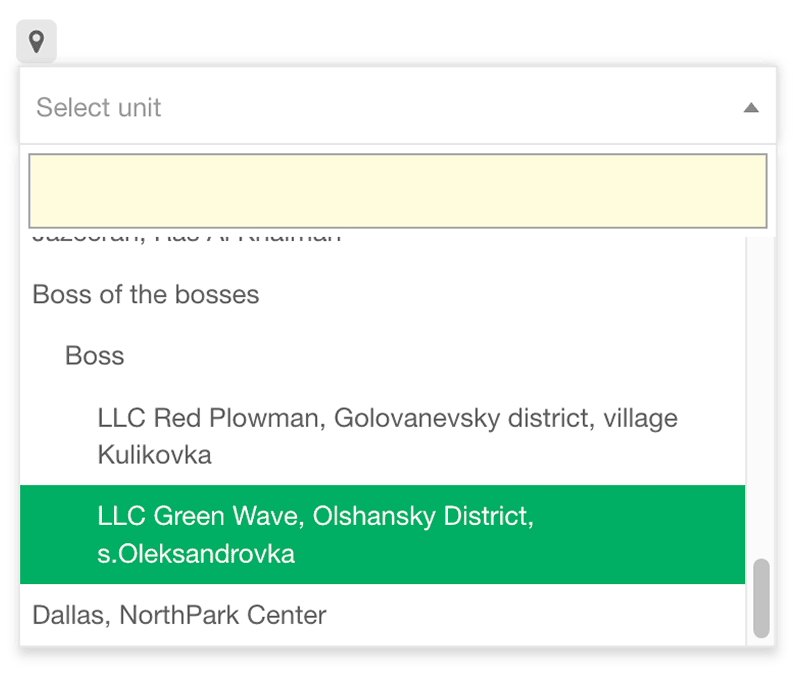
Once parent–child relationships are configured, unit selectors can display the structure as a tree rather than as one flat list.
How the tree structure works
The tree structure helps users understand where a unit sits within the organisation.
For example, instead of seeing several locations with no context, a user can navigate through their parent structure and select the relevant unit from the appropriate branch.
This is particularly useful when:
- several units have similar names;
- the organisation operates across multiple regions or countries;
- locations belong to different business divisions;
- the unit list contains a large number of entries.
The hierarchy does not change the unit itself. It defines how units are organised in relation to one another.
Reorder Units
You can also define the exact order in which units appear in dropdown lists.
To change the order:
1. Open Settings > Units.
2. Select Reorder.
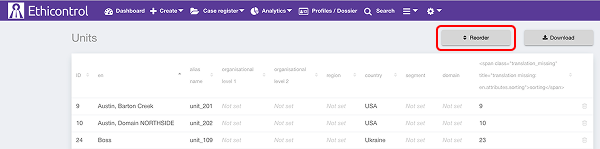
3. The Units reorder page opens.
4. Use the reorder handle next to a unit to drag it to the required position.
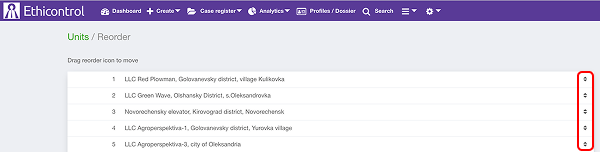
5. Arrange the remaining units in the required sequence.
The resulting order is stored in the organisation's configuration and is used when Units are displayed in supported dropdown lists.
How custom ordering affects dropdowns
Without custom ordering, units may appear according to the system's default sorting.
Custom ordering allows administrators to place frequently used or logically related units in a more useful sequence.
For example, you may want to:
- place headquarters before regional offices;
- keep locations from the same region together;
- follow the organisation's internal reporting structure;
- place the most frequently selected units near the top of the list.
The order is applied consistently across supported unit selectors.
Tree structure and custom order work together
Hierarchy and order solve different problems.
| Setting | What it controls |
|---|---|
| Parent–child structure | How units are related to each other |
| Custom order | In which sequence units are displayed |
For example, you can create a parent unit for a region, assign several locations underneath it, and then arrange those locations in the preferred order.
This provides both organisational context and predictable navigation.
Notes
- Parent–child relationships can be configured through the interface or settings files.
- The exact organisational hierarchy depends on your organisation's configuration.
- Custom ordering can be managed from Settings > Units > Reorder.
- Use the reorder handles to change the sequence of units.
- The configured order is stored in the organisation's settings and applied to supported Unit dropdowns.
- Hierarchy and custom order are separate settings and can be used together.
- Access to Unit configuration depends on your user permissions.