
The Period Outlook report provides a quick overview of reporting activity for a selected week or month.
It compares the current period with the previous one and brings together the main case statistics, including registered and open reports, intake channels, business units, categories, case health, and statuses.
This makes it useful for regular operational reviews without having to analyse individual cases one by one.
Where to find the Period Outlook report
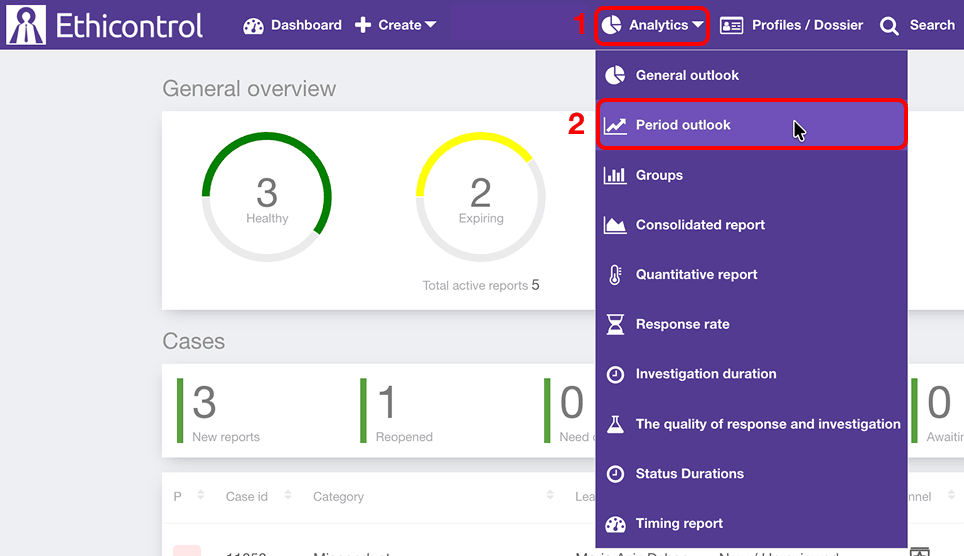 1. Open Analytics from the main navigation.
2. Select Period outlook.
The report contains:
- period selection;
- registered report statistics;
- comparison with the previous period;
- new-report breakdowns;
- case health information;
- status distribution.
Choose the reporting period
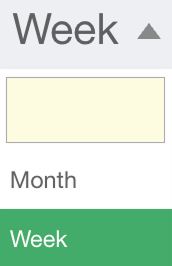
- Week
- Month
Then select the relevant date range.
The report automatically compares the selected period with the previous equivalent period.
For example, if Week is selected, the current week is compared with the previous week.
If Month is selected, the selected month is compared with the previous month.
Review registered reports
The Registered reports section provides a high-level comparison of case activity between the current and previous periods.
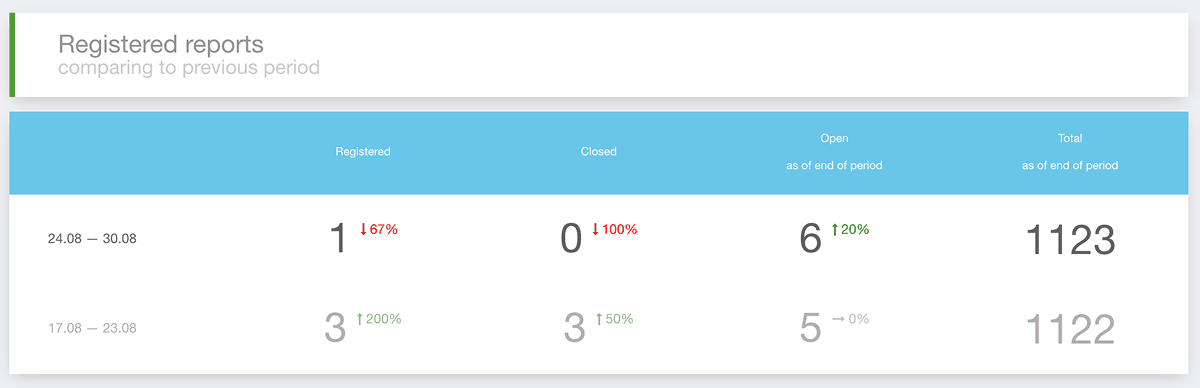
It includes indicators such as:
Registered
Closed
Open as of end of period
Total as of end of period
The current period is shown together with the corresponding previous-period values.
Percentage changes help you quickly see whether activity has increased or decreased.
Review new reports by intake channel
The By Intake Channel section shows how newly registered reports were submitted.
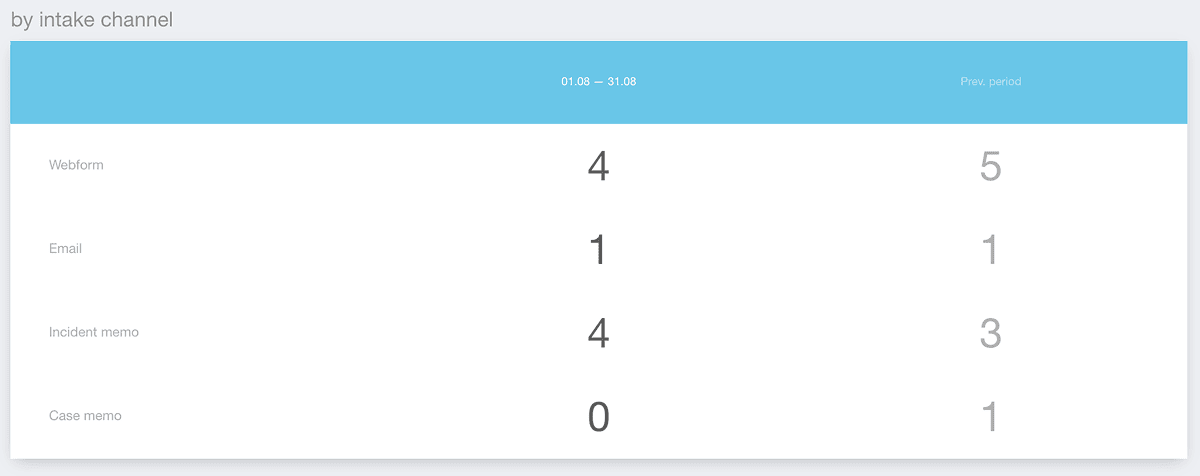
Depending on your organisation's configuration, channels may include:
Webform;
Email;
Incident memo;
Phone;
other configured reporting channels.
The table compares the selected period with the previous period.
Use this section to understand which reporting channels are being used most frequently and whether reporting behaviour is changing over time.
Review new reports by business unit
The By Business Unit section shows how reports are distributed across organisational units.
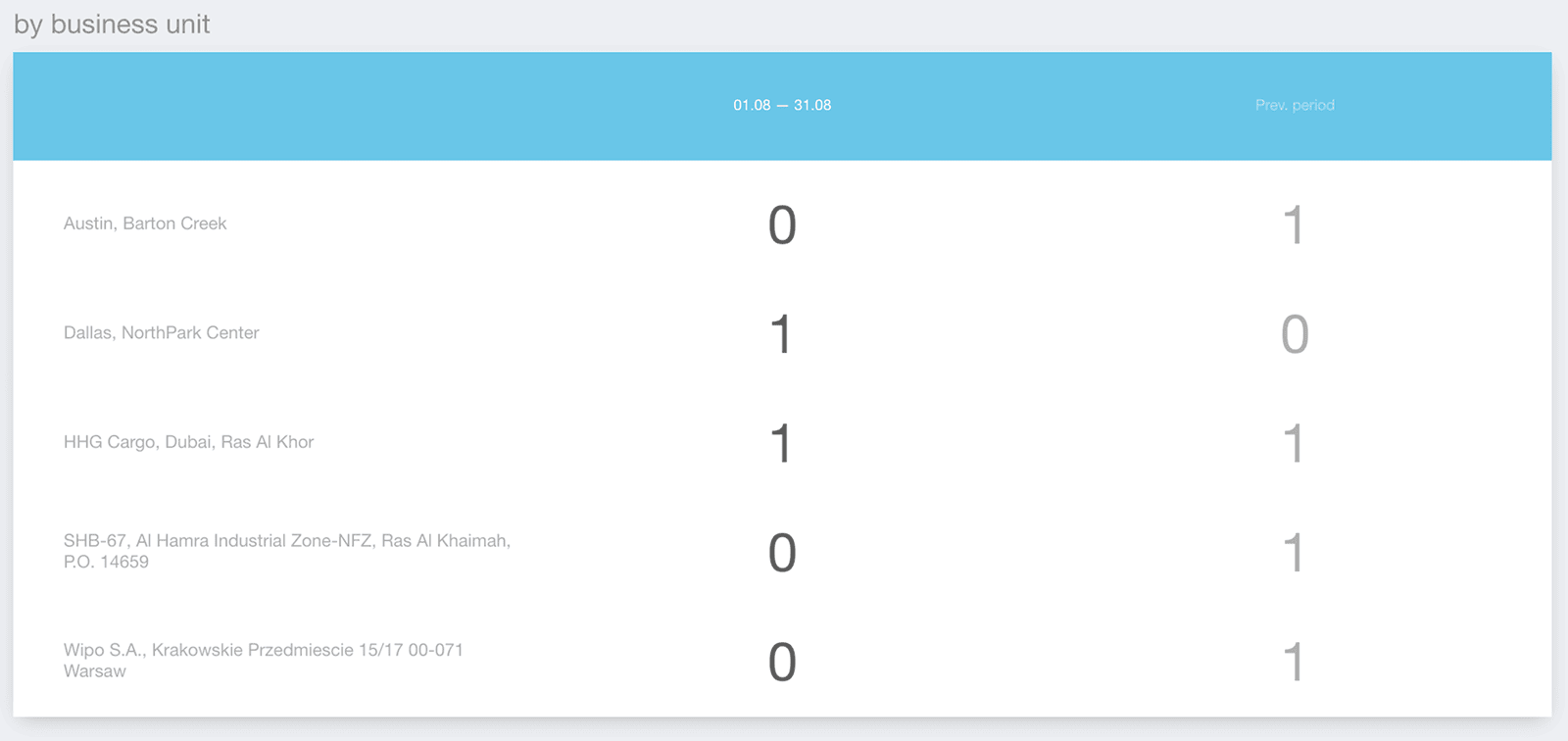
Each row represents a business unit or organisational area and compares the number of reports in the selected period with the previous period.
This can help you identify:
units with increasing reporting activity;
units with fewer reports than before;
areas where reporting activity is concentrated.
Available units depend on your organisation's structure and configuration.
Review new reports by category
The By Category section groups new reports according to their case category.
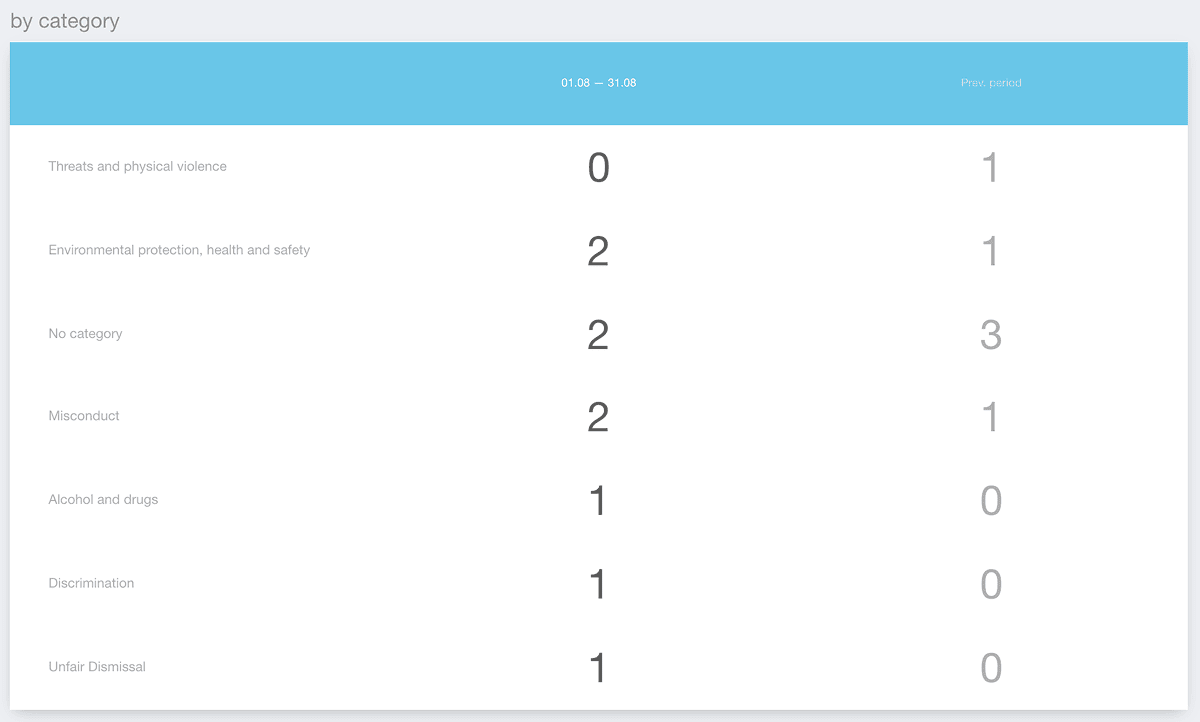
For example, categories may include:
Misconduct;
Unfair Dismissal;
Environmental protection, health and safety;
Conflict of interest;
other configured categories.
The report compares category activity with the previous period.
Use this section to identify which types of concerns are becoming more or less frequent.
Review case health
The By Health section provides an overview of open cases according to their current case-health state.
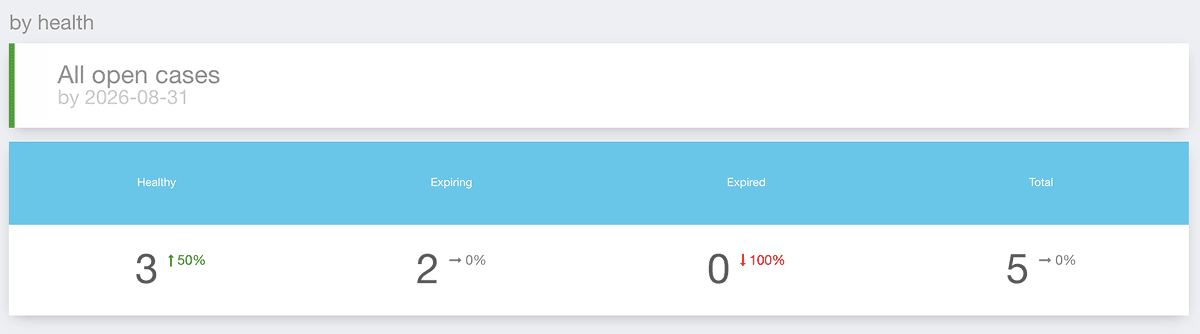
The report may include:
Healthy
Expiring
Expired
Total
Each value can also show how it changed compared with the previous period.
This helps you quickly see whether more open cases are approaching or exceeding expected processing timeframes.
The exact health logic depends on your organisation's case-management configuration.
Review cases by status
The By Status section shows how cases are distributed across the statuses configured in your workflow.
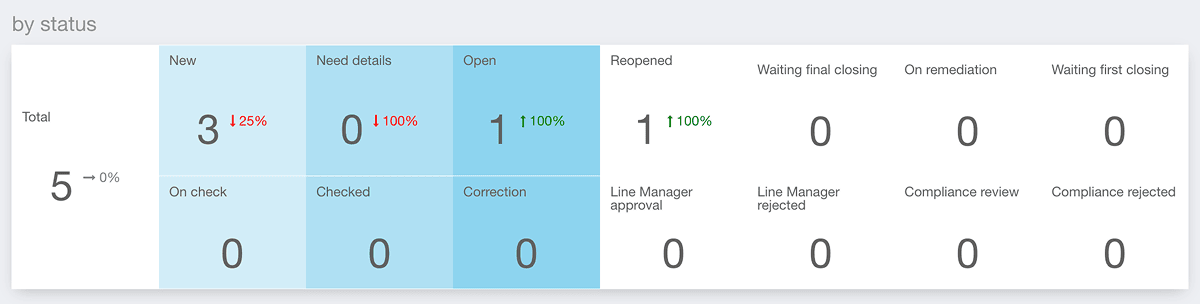
Depending on your organisation, statuses may include:
New;
Need details;
Open;
Reopened;
Waiting final closing;
On remediation;
Waiting first closing;
On check;
Checked;
Correction;
other configured statuses.
The report shows both the total number of cases and the number associated with each status.
Use this section to understand where cases are currently concentrated in the case-management lifecycle.
Compare the current period with the previous period
One of the main purposes of Period Outlook is to make period-to-period changes visible.
Rather than reviewing a single number in isolation, the report shows how the current week or month compares with the previous one.
This can help you identify changes such as:
a sudden increase in registered reports;
a decrease in closed cases;
growth in a particular category;
increased reporting from one business unit;
more cases becoming Expiring or Expired.
When a significant change appears, use the other Analytics reports or individual case records to investigate it in more detail.
Receive Period Outlook automatically by email
Period Outlook can also be delivered automatically by email.
Depending on your organisation's configuration, the report can be scheduled in:
weekly format;
monthly format.
This allows designated users to receive a regular summary of reporting activity without opening Analytics manually each time.
Availability and recipients depend on your organisation's reporting and notification configuration.
How to use the Period Outlook report
The report is useful for regular monitoring of reporting activity.
For example, you can use it to:
compare reporting activity with the previous week or month;
monitor whether open case volumes are increasing;
identify changes in the most frequently used intake channels;
compare reporting activity across business units;
identify categories with increasing report volumes;
monitor case-health distribution;
review where cases are concentrated across workflow statuses;
provide management with a recurring overview of reporting activity.
For deeper analysis of a specific area, use dedicated Analytics reports such as Groups, Response Rate, Investigation Duration, Status Durations, or Timing Report.
Notes
Period Outlook can be viewed by Week or Month.
The report compares the selected period with the previous equivalent period.
Available channels, business units, categories, health states, and statuses depend on your organisation's configuration.
Period Outlook can be configured for automatic weekly or monthly delivery by email.
The report provides an overview of activity and should be used together with more detailed reports when additional analysis is required.
Access to Period Outlook depends on your user permissions.